
Browser extension · Chrome
Export Google search results to CSV
Capture organic result URLs, titles and snippets from a Google web search. Download a CSV for your research, or send the same capture to RankGear on your computer for an Analysis Run.
CSV export requires no RankGear account, desktop app or API key.
How it works
Three steps, start to CSV
Open a search
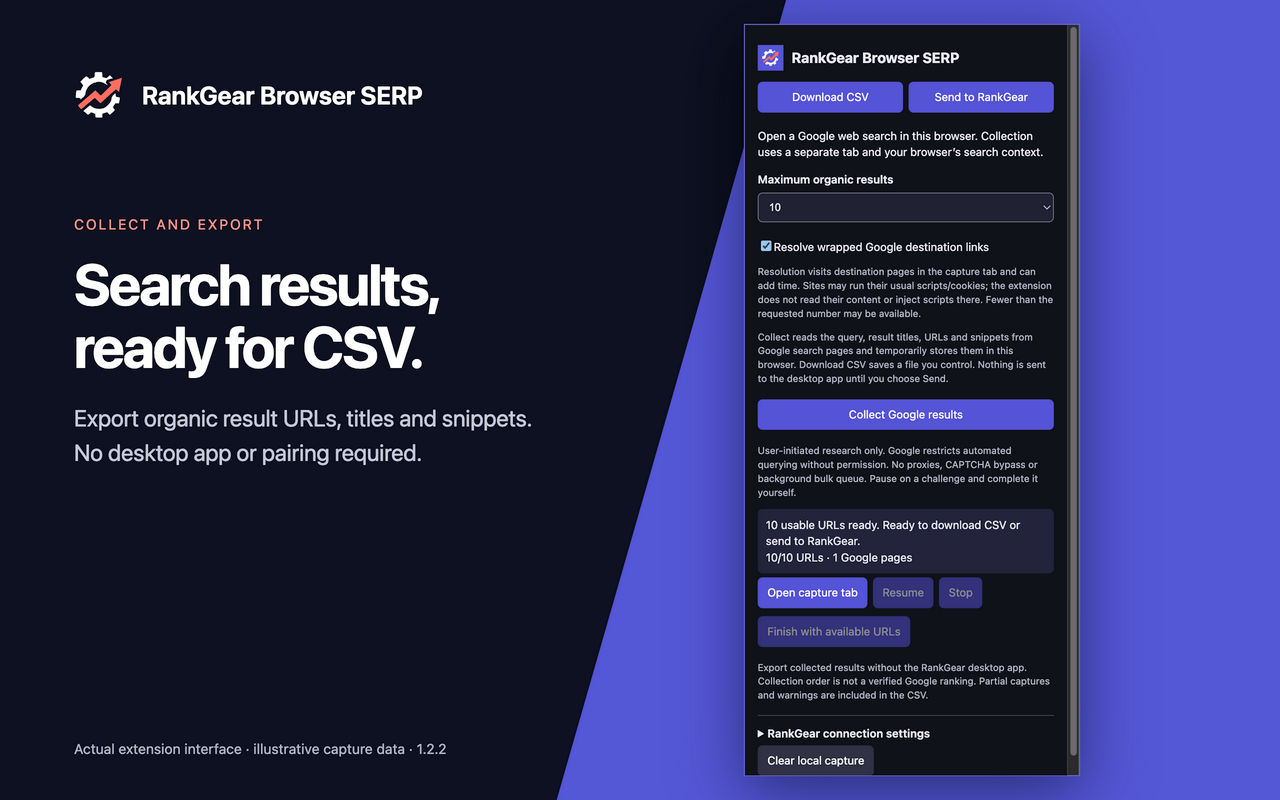
Install RankGear Browser SERP from the Chrome Web Store, pin it to the toolbar, and open a supported Google web search. Images, News, Shopping and Maps are outside its scope.
Collect results
Choose a maximum of 10, 20, 30, 50 or 100 organic results and click Collect Google results. The extension opens a separate capture tab and loads successive result pages until it reaches the selected limit or a stop condition.
Choose where the capture goes
Click Download CSV to save a file. If you use RankGear, click Send to RankGear to review the same capture in the desktop app. Both actions stay available for a completed capture.
Your export
What your CSV includes
Each export records the query, the order results were collected in, result URLs, titles, snippets, capture time and source page offsets. It also writes down how many results you requested, how many were actually captured, and any warnings raised along the way. If a capture stops early, the CSV marks it as partial rather than passing it off as complete.
Text is escaped for spreadsheet use, and formula-like values are prefixed so a result title cannot execute when the file is opened.
The capture
Query, collection order, URL, title, snippet, capture time and the source page offset each result came from.
The accounting
Requested count, captured count, partial-capture status, warnings and the extension version.
The caveat
Collection order reflects your browser’s search context. It is not a verified Google ranking.
Know what you captured
Partial results are disclosed, not hidden
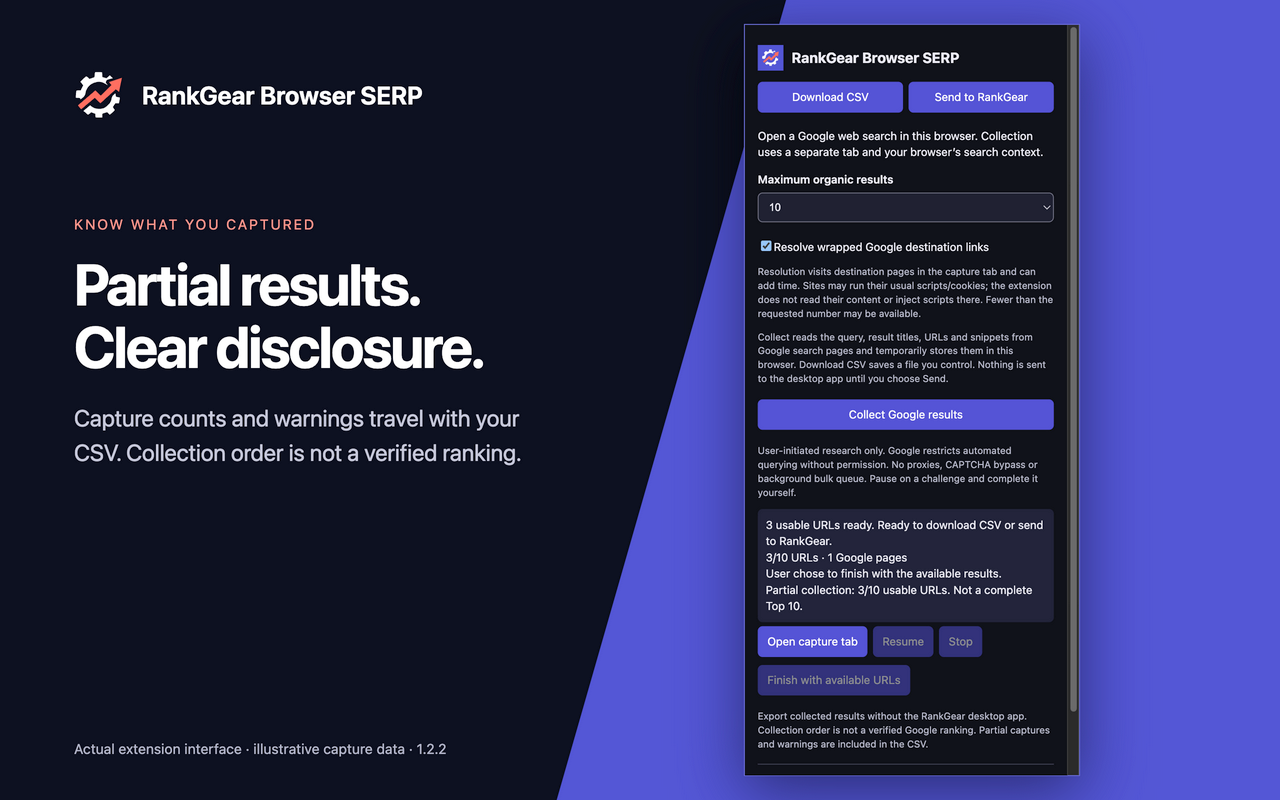
Consent screens, challenges and unrecognised layouts pause collection for your review instead of being recorded as an empty success. There is no CAPTCHA bypass, no proxy rotation and no background bulk queue — if something needs a human, the extension stops and tells you.
Open the capture tab, resolve whatever is on screen, and click Resume. If the results already collected are enough, click Finish with available URLs and export an explicitly partial capture — the counts and warnings travel with the CSV.
Optional
Use a capture in RankGear
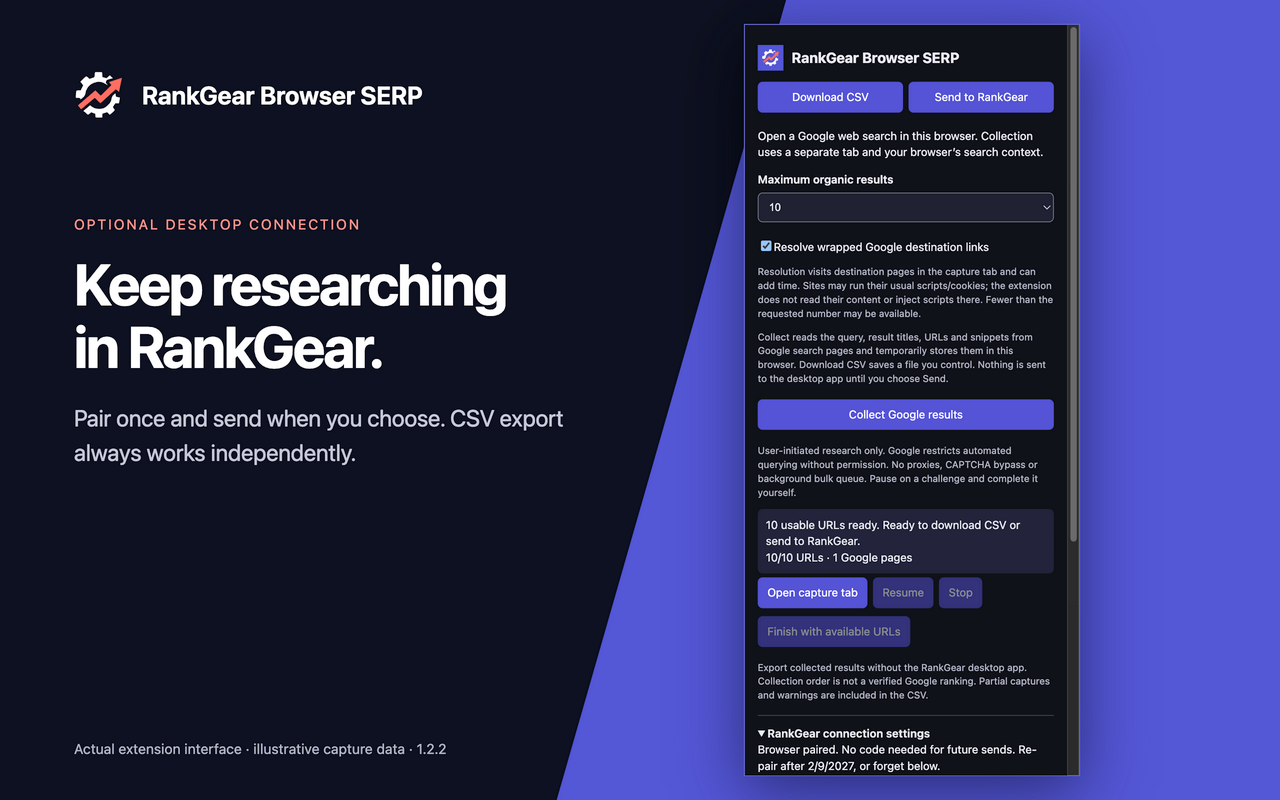
In RankGear, open Analysis Run and choose Connect browser extension under Browser-assisted Google results. Expand RankGear connection settings in the extension and paste the setup code if prompted. Click Send to RankGear, review the results in the app, then choose Use these results in Analysis Run and start the analysis when you are ready.
Pairing happens once over a local connection on your own computer and is remembered for up to 90 days. Sending a capture does not start an analysis, and you can revoke the pairing from either side at any time. Need the app first? Download RankGear.
Scope. Results reflect your browser’s session, account and location, not a certified neutral Google ranking. Google restricts automated querying without express permission; this is user-initiated research, and your use must comply with Google’s applicable terms. RankGear is not affiliated with or endorsed by Google.
Questions, answered
Do I need the RankGear desktop app?
No. You can install the extension and download CSV files on their own. The desktop app is required only for Send to RankGear — open RankGear and connect the browser extension in Analysis Run before sending. A saved pairing can be reused while it remains valid.
Can I save a CSV after sending results to RankGear?
Yes. Download CSV and Send to RankGear use the same capture, so you can use either action or both.
What if collection pauses?
Open the capture tab and check for a consent screen or challenge. Once you resolve it, click Resume. If you want to keep the usable results already collected, click Finish with available URLs, then Download CSV.
How should I interpret the result order?
The CSV records the order in which results were collected in your browser’s search context. Personalization, location, layout and result availability can all affect the capture, so treat it as a snapshot for research. The extension supports regular Google web search; Images, News, Shopping and Maps are outside its scope.
Where are captures stored?
The extension keeps capture data in the browser session until you clear it or the session ends. CSV files stay wherever you save them. When you choose Send to RankGear, the capture goes to your paired desktop app on the same computer. Read the RankGear privacy policy for the full detail.
Keep a copy of your search results
Install RankGear Browser SERP, open a search and export the results to CSV. Use the same capture in RankGear whenever you need a deeper analysis.
Free · no account required · Support · Privacy policy